This article may contain affiliate links. If you buy through them we may earn a commission at no extra cost to you.
Thunderbolt 3 and USB-C share a connector but not a protocol. Thunderbolt 3 delivers 40 Gbps; the fastest USB-C variant (USB 3.2 Gen 2×2) reaches 20 Gbps. A Thunderbolt 3 port accepts USB-C cables and devices, but a USB-C port cannot run Thunderbolt signals at all.
Physical Connector vs. Protocol: Why They Look Identical
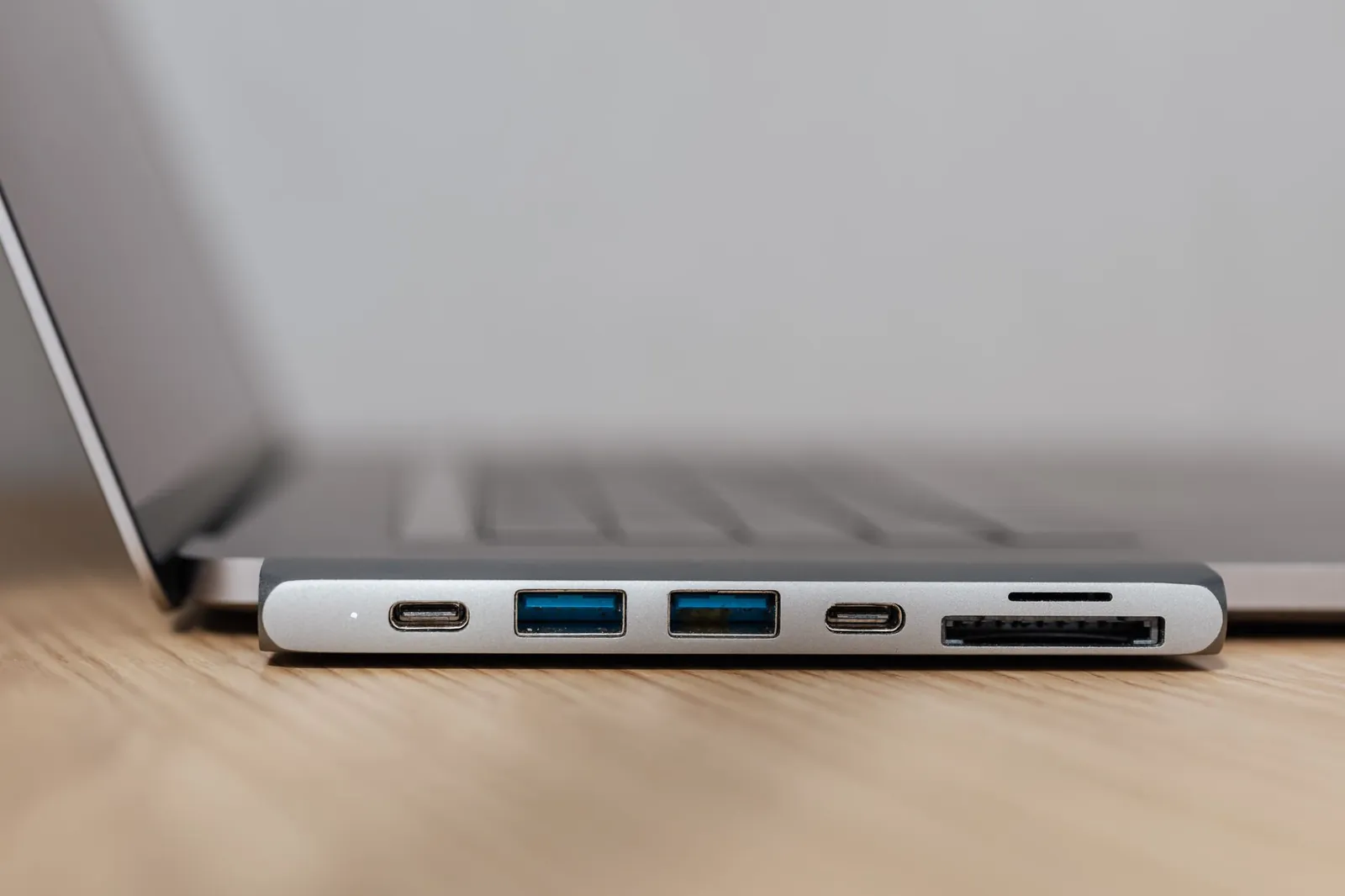
The USB-C connector is just a physical housing—a shape agreement between manufacturers. The protocol running through it is a separate decision. Intel developed Thunderbolt 3 and licensed it to device makers; it uses the USB-C shape for convenience, not because it is USB. A Thunderbolt 3 port will handshake with a USB-C device and fall back to USB speeds. Plug a USB-C device into a USB-C port and nothing changes. Plug a Thunderbolt 3 device into a USB-C port and the Thunderbolt controller is simply absent—the device either runs at USB speeds or doesn’t work at all.
Speed Comparison
Thunderbolt 3
Thunderbolt 3 runs at 40 Gbps full-duplex. That’s enough to move a 100 GB video file in roughly 20–25 seconds, provided the storage device can sustain sequential reads above 3,000 MB/s—which NVMe-based Thunderbolt enclosures can. It also carries two simultaneous 4K DisplayPort streams within that same 40 Gbps envelope.
USB-C speed tiers
USB-C has no single speed. The bandwidth depends on which USB generation the port implements:
- USB 3.2 Gen 1: 5 Gbps
- USB 3.2 Gen 2: 10 Gbps
- USB 3.2 Gen 2×2: 20 Gbps (requires two lanes; uncommon on thin laptops)
- USB4 Gen 2×2: 20 Gbps
- USB4 Gen 3×2: 40 Gbps (matches Thunderbolt 3 bandwidth, but without mandatory Thunderbolt certification)
Manufacturers frequently omit the generation from product listings. If the spec sheet says only “USB-C,” assume 5–10 Gbps unless a generation number is printed next to the port or listed explicitly.
A Thunderbolt 3 port accepts USB-C devices, but a USB-C port cannot run Thunderbolt protocols—it’s a one-way street.
Power Delivery
Both Thunderbolt 3 and USB-C support USB Power Delivery (USB PD) 3.0, which allows up to 100 watts. The difference is consistency. Thunderbolt 3 ports appear almost exclusively on premium devices—MacBook Pros, Dell XPS 13, ThinkPad X1 Carbon—where 100 W PD is standard. USB-C ports span a much wider range: a budget Android phone charger might supply only 15 W through a USB-C port, while a mid-range laptop dock might offer 65 W. At 65 W, a 15-inch laptop charges slowly under load; at 45 W or below, the battery may drain while plugged in during sustained CPU or GPU use.
Which Devices Use Thunderbolt 3?
Thunderbolt 3 is standard on MacBook Pro models from 2016 onward, the MacBook Air from 2018 onward, and Windows laptops positioned above roughly $1,000—the Dell XPS 13 and 15, Lenovo ThinkPad X1 Carbon (7th gen and later), and ASUS ZenBook Pro Duo among them. It does not appear on Chromebooks, most sub-$800 Windows laptops, or any Android or iOS device.
External Thunderbolt 3 SSDs sustain 2,500–2,800 MB/s reads in practice—roughly five times a fast USB 3.2 Gen 2 drive. That gap matters when ingesting raw footage from a cinema camera or running a virtual machine off external storage. For transferring a 5 GB photo library or streaming a 4K movie from a USB drive, USB 3.2 Gen 2 at 10 Gbps is not a bottleneck.
Daisy-Chaining
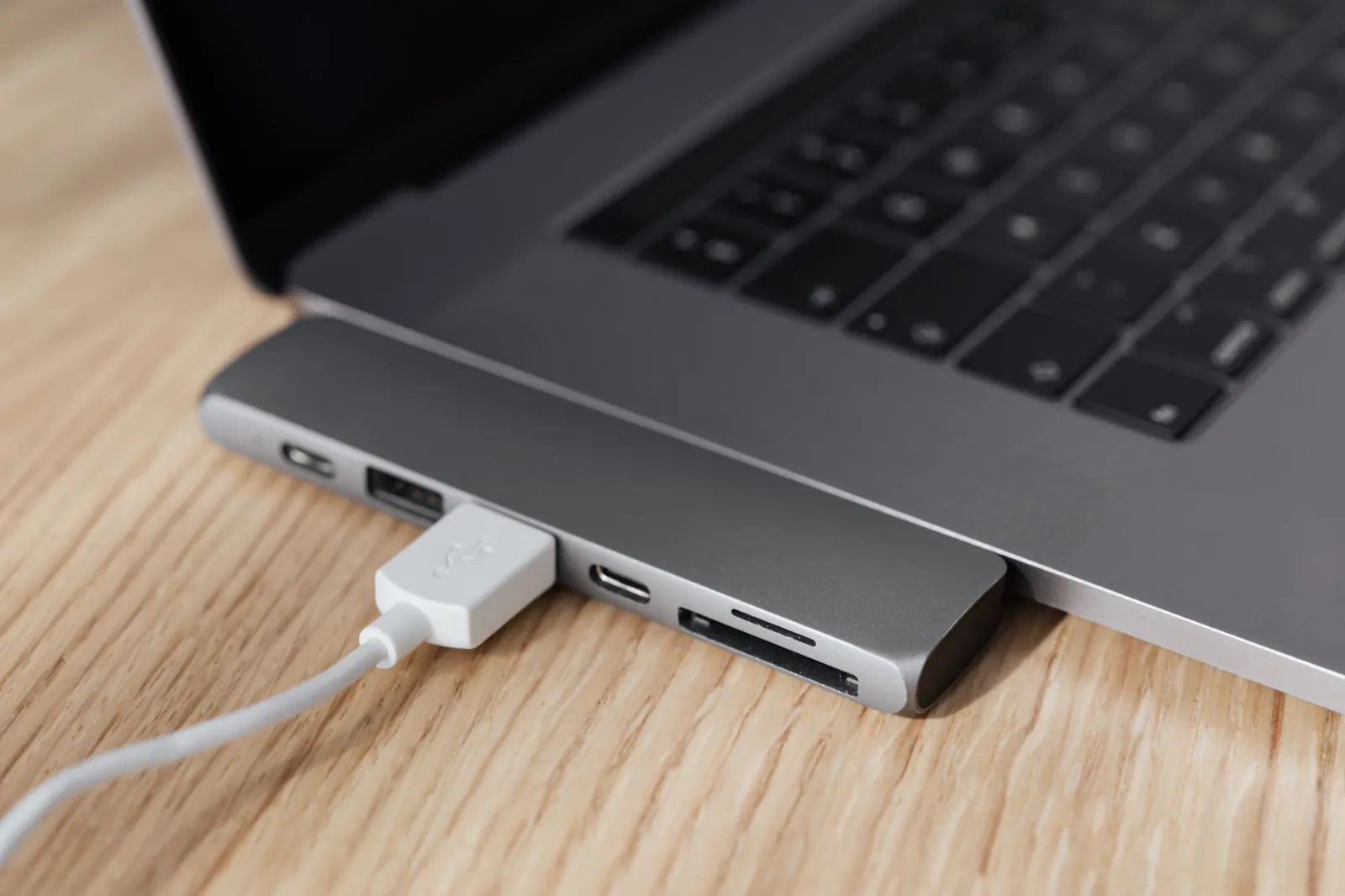
Thunderbolt 3 supports daisy-chaining up to six devices from a single port: a monitor can pass data to a drive connected behind it, which passes to another drive, and so on. Each device in the chain shares the 40 Gbps total, so adding a 4K display (roughly 15 Gbps) leaves about 25 Gbps for storage. USB-C has no daisy-chain capability—each device needs its own port or a hub.
Daisy-chaining requires Thunderbolt 3 devices with two Thunderbolt ports (one in, one out). Most consumer Thunderbolt monitors include this; standalone drives often do not. If your setup involves more peripherals than ports, a Thunderbolt dock is more practical than a daisy chain.
Cables and Accessories
Certified Thunderbolt 3 cables run $25–$50 and are rated to carry 40 Gbps and 100 W without signal loss. A passive USB-C cable—the kind bundled with phones, typically $5–$10—may physically fit a Thunderbolt 3 port and charge fine, but it will cap data at USB 2.0 speeds (480 Mbps) if it isn’t rated for USB 3.x. The cable’s rated speed is printed on the packaging or in its listing; if it isn’t listed, treat it as USB 2.0.
Thunderbolt 3 docks and external SSDs are backward-compatible with USB-C ports—they’ll operate at USB speeds. USB-C docks plugged into a Thunderbolt 3 port work correctly but don’t gain any Thunderbolt capability.
Thunderbolt 4: What Changed
Thunderbolt 4, released in 2020, keeps the 40 Gbps ceiling but tightens the certification floor. Every Thunderbolt 4 port must support 100 W charging, connect two 4K displays simultaneously, and include PCIe tunneling at a minimum of 32 Gbps. Thunderbolt 3 allowed manufacturers to ship ports that met only some of those thresholds. If you’re buying a laptop now, Thunderbolt 4 is the more predictable choice—the feature set is guaranteed, not optional.
Quick Comparison
| Feature | Thunderbolt 3 | USB-C (USB 3.2 Gen 2×2) |
|---|---|---|
| Max data speed | 40 Gbps | 20 Gbps |
| Max power delivery | 100 W (USB PD 3.0) | Up to 100 W (varies by device) |
| Video output | Two 4K or one 5K displays | One 4K via DisplayPort Alt Mode |
| Daisy-chaining | Up to 6 devices | Not supported |
| PCIe tunneling | Yes (up to 32 Gbps) | No |
| Connector shape | USB-C | USB-C |
| Backward compatibility | Accepts USB-C devices | Cannot run Thunderbolt |
Our verdict
If you edit 4K or 6K video, use external NVMe storage, or need to drive two monitors from one port, Thunderbolt 3 justifies the premium on both the laptop and the accessories. For charging, single-display setups, and file transfers under 50 GB, USB-C at 10 Gbps is sufficient and the hardware costs less. Check the port icon before buying a dock or cable—a lightning-bolt symbol means Thunderbolt; no symbol almost always means USB only.
Frequently asked questions
Can I use a USB-C cable in a Thunderbolt 3 port?
Yes, physically. The cable will charge and transfer data, but only at the speed the cable is rated for—often USB 2.0 (480 Mbps) for cheap cables. For 40 Gbps transfers, use a certified Thunderbolt 3 cable.
Can I use a Thunderbolt 3 cable in a USB-C port?
Yes. The cable is backward-compatible and won’t cause any harm, but you’ll get USB-C speeds—the Thunderbolt controller doesn’t exist on the USB-C side to negotiate anything faster.
Do I need Thunderbolt 3 for video output?
No. USB-C supports video via DisplayPort Alt Mode, which handles a single 4K display at 60 Hz without Thunderbolt. Verify your port supports Alt Mode—not all USB-C ports do—by checking the spec sheet.
How do I know if a laptop has Thunderbolt 3 or just USB-C?
Look for a lightning-bolt icon printed next to the port. No icon typically means USB only. On macOS, go to Apple menu > About This Mac > System Report > Thunderbolt. On Windows, open Device Manager and look for a Thunderbolt controller under the System Devices or Universal Serial Bus categories.
Is Thunderbolt 3 worth the extra cost?
It depends on file sizes and peripheral count. Sustained transfers above 1 TB, external GPU enclosures, and multi-monitor docking all benefit measurably. Browsing, email, and occasional photo imports do not.

Lena writes about smart home, audio and the software settings nobody reads the manual for.